


Description
Download Lion Recovery Disk Assistant – free Apple recovery partition tool for macOS Lion
Overview
Lion Recovery Disk Assistant is Apple’s official utility designed to give Mac users a reliable safety net for macOS Lion. When you install Lion, the operating system automatically creates a hidden recovery partition on the internal drive. That hidden partition is handy for everyday troubleshooting, but it disappears the moment the internal disk fails completely. Lion Recovery Disk Assistant solves that problem by letting you create a dedicated recovery partition on any external USB flash drive or hard drive with at least 1 GB of free space. Once the partition is in place, you can boot directly into a full‑featured recovery environment, reinstall Lion from the Mac App Store, run Disk Utility to repair a damaged disk, restore data from a Time Machine backup, or even browse the web with Safari when your primary system is offline. The tool is completely free, requires no additional purchase, and works on any Mac that supports macOS Lion (10.7) or later. Because the assistant creates a true partition rather than a simple disk image, the recovery environment behaves exactly like the built‑in recovery HD, giving you the same set of utilities and the same seamless experience when you hold the Option key at startup. Whether you’re a professional who cannot afford downtime, a student needing a quick fallback, or a casual user who wants peace of mind, Lion Recovery Disk Assistant provides a simple, secure way to keep a hard copy of Lion’s recovery tools within reach.
Key Features of Lion Recovery Disk Assistant
- Creates a bootable recovery partition on any external USB stick or hard drive.
- Supports macOS Lion (10.7) and later versions without additional licensing.
- Enables full OS reinstall directly from the Apple Store without needing an Internet connection.
- Provides access to Disk Utility, Time Machine restoration, and Safari for offline browsing.
- Simple, wizard‑style interface that guides users through each step.
- Minimal hardware requirement – only 1 GB of free space on the external drive.
- Does not alter the internal drive layout; the new partition remains invisible in Finder and Disk Utility to avoid accidental deletion.
- Free download with no hidden fees or trial limitations.
- Securely stores recovery files, reducing the risk of corruption caused by a failing internal SSD or HDD.
- Fully compatible with both Intel‑based Macs and early Apple‑silicon models running macOS Lion through Rosetta 2 (if applicable).
Step‑by‑Step Installation & Usage Instructions
Getting Lion Recovery Disk Assistant up and running is straightforward, even for users who are not comfortable with command‑line tools. Follow these steps to create a reliable recovery partition:
- Download the Assistant: Visit Apple’s official support page or a trusted software repository and download the latest version of Lion Recovery Disk Assistant. The file is typically a
.dmgpackage. - Mount the Disk Image: Double‑click the
.dmgfile to mount it on your desktop. Inside, you’ll find the application named “Lion Recovery Disk Assistant.” - Prepare Your External Drive: Connect a USB flash drive or external hard drive with at least 1 GB of free space. Ensure the drive is formatted as
Mac OS Extended (Journaled)(or APFS for newer macOS versions). You can reformat the drive using Disk Utility if needed. - Launch the Assistant: Drag the application to your
Applicationsfolder and open it. You may be prompted to enter your administrator password. - Select the Destination: The wizard will display a list of attached drives. Choose the external drive you prepared in step 3. Be careful to select the correct drive, as the assistant will create a hidden partition on it.
- Start the Creation Process: Click “Create Recovery Partition.” The assistant will copy the necessary recovery files from your internal Lion installation and build the hidden partition. This process typically takes 5–10 minutes depending on the speed of the external drive.
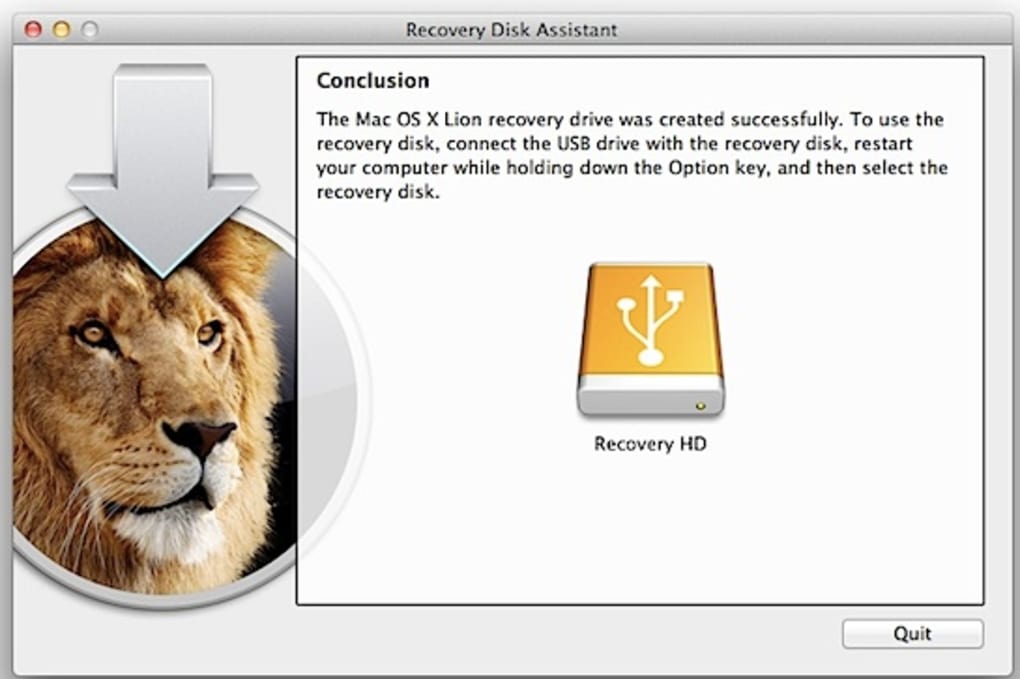
- Verify Completion: Once finished, you’ll see a confirmation dialog. The new partition will not appear in Finder or Disk Utility, which is expected behavior.
- Boot from the Recovery Partition: To use the recovery environment, restart your Mac and hold the
Option(⌥) key immediately after the startup chime. In the Startup Manager, you’ll see an entry labeled “Recovery HD.” Select it and pressEnter. - Perform Recovery Tasks: After booting, you’ll have access to the same tools as the built‑in recovery HD: reinstall Lion, run Disk Utility, restore from Time Machine, or launch Safari for basic web browsing.
- Maintain the Partition: Periodically connect the external drive and run the assistant again if you upgrade to a newer version of Lion or macOS. The tool will update the recovery files automatically.
By following these steps, you create a durable, offline backup of Lion’s recovery environment that can rescue you from a completely failed internal drive—without needing to purchase a new installation disc or rely on a network connection.
Compatibility, Pros & Cons, FAQ and Final Verdict
Compatibility
Lion Recovery Disk Assistant runs on any Mac that can run macOS Lion (10.7) or later. This includes:
- Intel‑based iMac, MacBook, MacBook Pro, MacBook Air, Mac mini and Mac Pro models released from 2006 onward.
- Early Apple‑silicon Macs (M1) when running Lion under Rosetta 2 compatibility, though native Apple‑silicon support is limited to newer macOS versions.
- External storage devices formatted as Mac OS Extended (Journaled) or APFS with at least 1 GB of free space.
Pros & Cons
- Pros
- Free, no hidden fees or trial periods.
- Creates a true bootable partition, not just an image file.
- Works offline—ideal for locations with unreliable Internet.
- Simple wizard UI; no command‑line knowledge required.
- Preserves all native Lion recovery utilities (Disk Utility, Safari, Time Machine restore).
- Cons
- Only supports macOS Lion; not useful for newer macOS releases without additional tools.
- The created partition is hidden, which can confuse users unfamiliar with the process.
- Requires an external drive; users without spare storage must purchase one.
- Apple‑silicon support is limited to Rosetta 2, which may affect performance.
Frequently Asked Questions
Do I need an Internet connection to reinstall Lion using the recovery partition?
No. The recovery partition contains the necessary installer files, allowing you to reinstall Lion completely offline.
Can I use the same external drive for multiple Macs?
Yes. The partition is hardware‑agnostic, so any Mac that can boot from the external drive can access the recovery environment.
Will the external recovery partition appear in Finder?
No. For safety reasons the partition is hidden from Finder and Disk Utility. You access it only through the Startup Manager (Option key at boot).
Is Lion Recovery Disk Assistant compatible with macOS High Sierra or later?
The tool is designed specifically for Lion (10.7). While you can run it on later macOS versions, it will only create a Lion recovery partition, not a recovery environment for the newer OS.
What should I do if the assistant fails to create the partition?
First, verify the external drive is correctly formatted and has enough free space. Then, restart your Mac and run the assistant again with administrator privileges. If the problem persists, try a different USB port or a different external drive.
Conclusion & Call to Action
Lion Recovery Disk Assistant fills a niche that many modern backup solutions overlook: a dedicated, offline recovery environment for macOS Lion. By turning an inexpensive USB stick or spare external hard drive into a bootable recovery partition, the tool gives you a safety net that works even when your internal drive is completely dead. The installation process is simple, the utility is free, and the resulting recovery experience mirrors Apple’s built‑in recovery HD, complete with Disk Utility, Time Machine restoration, and Safari browsing. While it’s limited to Lion and the hidden nature of the partition may initially puzzle some users, the benefits far outweigh these minor drawbacks for anyone still running Lion or needing a fallback for legacy systems. If you value uninterrupted workflow, data integrity, and the peace of mind that comes with a ready‑to‑use recovery system, download Lion Recovery Disk Assistant today, create your external recovery partition, and keep your Mac prepared for the unexpected.
Click here to download Lion Recovery Disk Assistant for free and secure your Mac with a reliable Lion recovery solution now.
Guides & Tutorials for Lion Recovery Disk Assistant
How to install Lion Recovery Disk Assistant
- Click the Preview / Download button above.
- Once redirected, accept the terms and click Install.
- Wait for the Lion Recovery Disk Assistant download to finish on your device.
How to use Lion Recovery Disk Assistant
This software is primarily used for its core features described above. Open the app after installation to explore its capabilities.
User Reviews for Lion Recovery Disk Assistant 0
No reviews found





.webp)